ClipMate Classic
ClipMate Classic closely resembles previous versions of ClipMate and takes up much less screen space than ClipMate Explorer. It features a menu, a toolbar, and a drop-down list of clips (the ClipList).
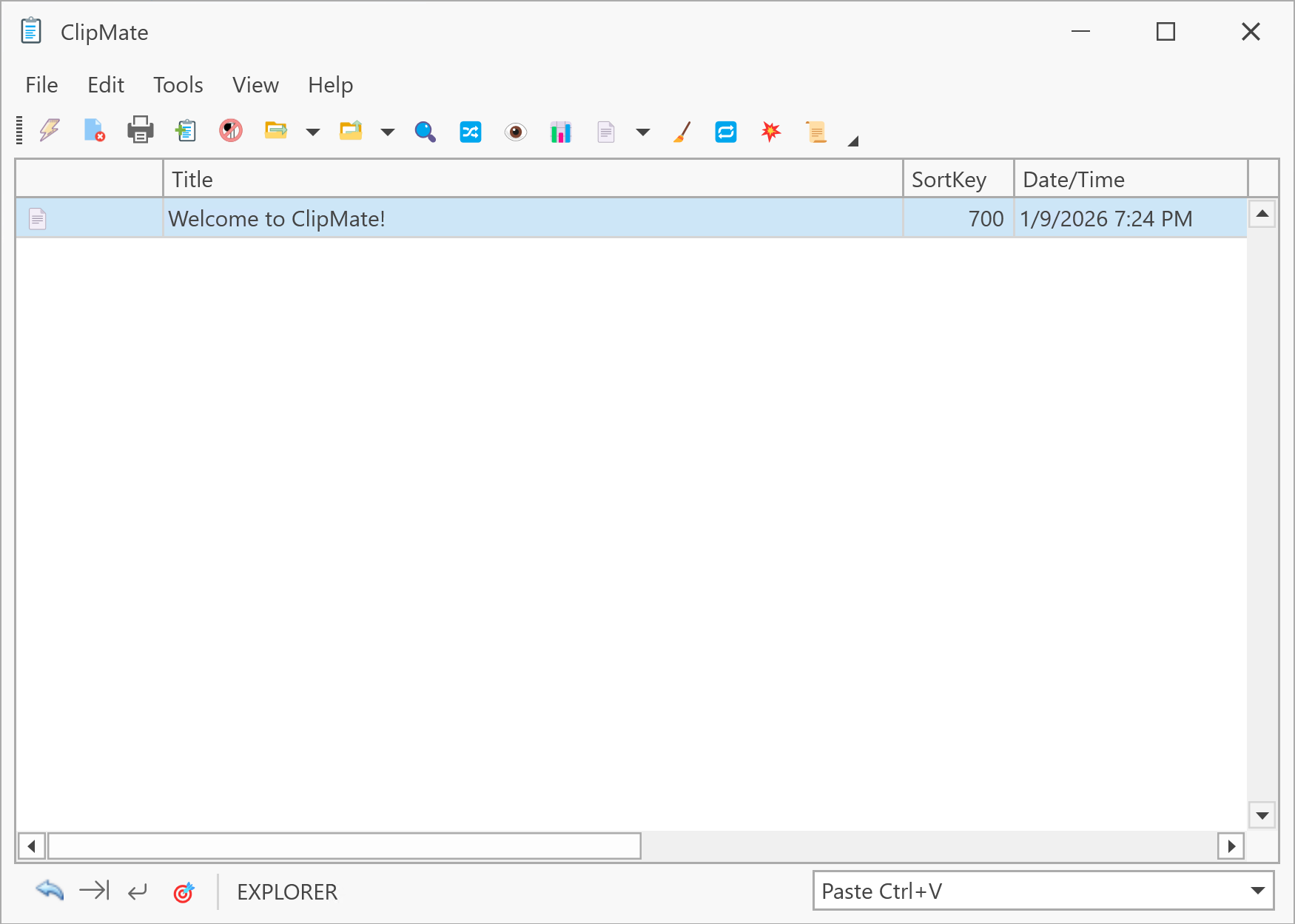
Window States
ClipMate Classic has two states:
Rolled-Up State
In this compact state, Classic shows just the toolbar and a single-line display of the current clip. This is ideal for keeping ClipMate accessible without consuming screen space.
Dropped-Down State
Click the drop-down arrow in the lower-right corner, and the window expands to show:
- The ClipList with all clips in the current collection
- A Preview/Edit pane showing the selected clip's contents
- The QuickPaste toolbar at the bottom
Key Features
-
Immediate Clipboard Loading: As soon as you select a clip in the ClipList, it's placed onto the system clipboard, ready for pasting into any application.
-
Tack Button: When dropped-down, a "tack" button appears next to the drop-down button. Click it to keep Classic in the dropped-down state. Otherwise, it automatically rolls up when you switch to another application.
-
QuickPaste Toolbar: The bottom toolbar shows the current QuickPaste target application.
-
Space-Saving Editor: The preview/edit window hides its toolbar by default to save space. Right-click within the editor to access toolbar options or show the full toolbar.
Navigation
| Action | Method |
|---|---|
| Toggle drop-down state | Press Spacebar or click the drop-down button |
| Switch to Explorer | Press Ctrl+E or click the Switch button |
| Stay on top / Auto-hide | Use View → Visibility menu or the titlebar visibility button |
Accessing ClipMate Classic
If you're in Explorer:
- Click the Switch Between Classic/Explorer button
- Press Ctrl+E
- Use View → Open ClipMate Classic menu
If Classic is already loaded but hidden, it appears instantly. Otherwise, there's a slight delay while the window loads. You can opt to pre-load Classic at startup in the Visual tab of the Options dialog.
QuickPaste and Classic
QuickPaste functionality is now available in any ClipList, including Explorer. ClipMate Classic no longer has a specific "QuickPaste mode" as in earlier versions.
For convenience, the old QuickPaste Hotkey (Ctrl+Shift+Q) still brings up Classic in dropped-down mode.