ClipMate Explorer
ClipMate Explorer is designed for data management and editing, featuring a three-pane interface modeled after Windows Explorer. It provides the full power of ClipMate for heavy-duty clip organization and editing tasks.
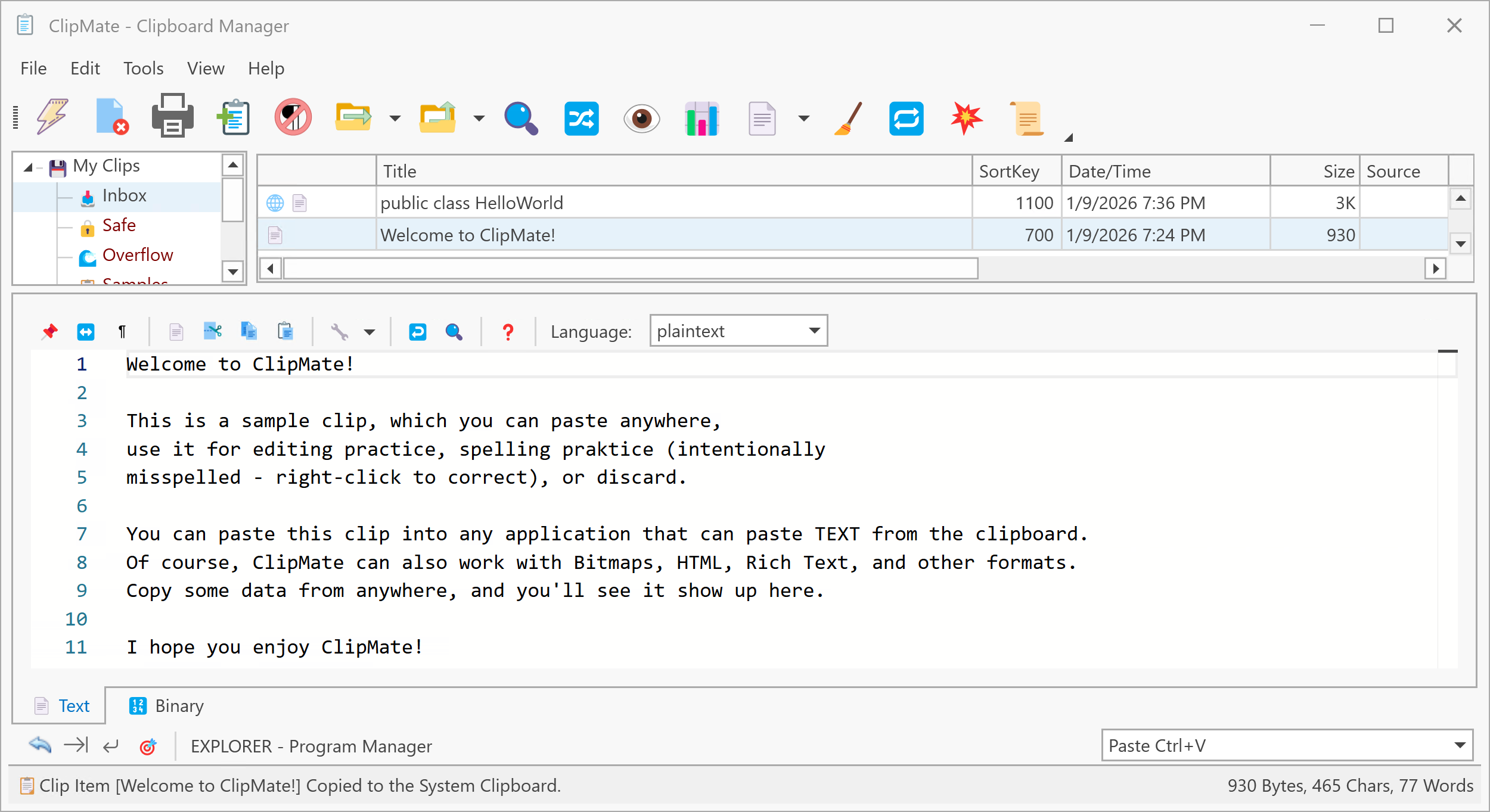
Interface Layout
ClipMate Explorer consists of three main panes:
Collection Tree (Left)
The Collection Tree displays your databases and collections in a hierarchical view. Click on a collection to load its clips into the ClipList.
ClipList (Upper Right)
The ClipList shows all clips in the currently selected collection. You can view clips in Detail View or Thumbnail View, sort by various columns, and perform operations on selected clips.
Preview/Edit Pane (Lower Right)
The Preview/Edit pane displays the contents of the selected clip and allows you to edit text clips. Multiple tabs at the bottom let you view different data formats (Text, Rich Text, Bitmap, HTML, etc.).
Resizable Panes
Resizable "splitter" bars between the panes let you adjust the layout to suit your needs. Drag the splitters to resize any pane.
Layout Options
You can choose between two Explorer layouts in the Options dialog (General tab):
| Layout | Description |
|---|---|
| Full Width Editor | The editor uses the full width of the Explorer window, with a shorter Collection Tree |
| Full Height Collection Tree | The Collection Tree extends the full height, with a narrower Editor |
Key Features
-
Drag and Drop: Drag clips between collections, reorder clips within a collection, or drag clips directly into other applications.
-
Multiple Selection: Select multiple clips using Shift+Click or Ctrl+Click for batch operations like move, copy, delete, or PowerPaste.
-
View Modes: Switch between Detail View (column-based list) and Thumbnail View using the Views button on the toolbar.
-
QuickPaste Toolbar: Located at the bottom, showing the current QuickPaste target application.
Accessing ClipMate Explorer
If you're in Classic:
- Click the Switch Between Classic/Explorer button
- Press Ctrl+E
- Use View → Open ClipMate Explorer menu
If Explorer is already loaded but hidden, it appears instantly. Otherwise, there's a slight delay while the window loads. You can opt to pre-load Explorer at startup in the General tab of the Options dialog.
Toolbar
The Explorer toolbar provides quick access to common operations. You can customize which buttons appear by right-clicking on the toolbar and selecting Customize.
Learn more about toolbar buttons →