Move Clips to Collection
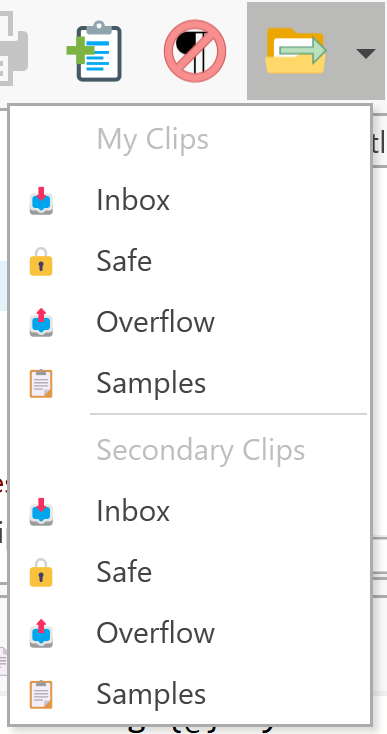
Moves selected clip(s) to another collection. This is the primary way to organize clips into different collections for long-term storage.
Usage
This is a split button with two parts:
Drop-Down Arrow
Click the arrow to see a menu of available collections. Select a collection, and the selected clips are moved there.
Icon Button
Click the icon (not the arrow) to repeat the last move operation using the same target collection. This is convenient when organizing multiple batches of clips to the same destination.
Alternative Methods
| Method | Action |
|---|---|
| Drag and Drop | Drag clips with the right mouse button to a collection, then select Move |
| Menu | Edit → Move to Collection |
| Keyboard | After selecting clips, use the menu |
Behavior Options
By default, clicking the icon repeats the last action without showing the menu. To always show the menu:
- Go to Options → Advanced
- Disable the option to reuse the last selection
Move vs. Copy
| Operation | Speed | Result |
|---|---|---|
| Move | Fast | Clip exists only in destination collection |
| Copy | Slower | Clip exists in both source and destination |
Moving is much faster than copying because it only updates the database record. Copying requires reading each clip into memory, cloning it, and writing a new record.